Skip to content
CogniAgent
  • Features
    Platform CapabilitiesCognitive AI AgentsConversational AIAutonomous AI Agents
    Virtual EmployeesMulti-Agent CollaborationAdvanced Voice AIWorkflow Automation
    All Features
  • Industries
    Retail & eCommerceReal EstateInsurance
    Call CenterRestaurantsSecurity
    Home Services
    HVACCleaning
    PlumbingAuto Repair
    All Industries
  • Use Cases
    SalesLead QualificationAI Sales Assistant
    Customer SupportCustomer Service AI AgentReturns Management
    MarketingAI Marketing AgentEmail Marketing Automation
    HR & RecruitingAI Recruiting AgentCandidate Screening
    OperationsERP Automation
    All Use Cases
  • Resources
    NewsBlogDocumentationPricing
    How-to GuidesTips & TricksPlatform Comparison
  • Company
    About UsContact
Start Free Demo
Guides / How to Create an AI-Automated Inquiry Auto-Response with CogniAgent (Real Estate Workflow Example)

How to Create an AI-Automated Inquiry Auto-Response with CogniAgent (Real Estate Workflow Example)

CogniAgent Email Follow-Ups Google Sheets Trigger No-Code Workflow Real Estate Automation
Jan 30, 2026
4 min read
Kristina Vislianska
banner 4 (1)

Discover how to build AI-automated email follow-ups that trigger the moment you add client information to Google Sheets – without manually writing emails or doing further segmentation.

Adaptable to any industry, this example focuses on real estate inquiries. Once you understand the workflow, you can easily tailor it to your own use case.

Most real estate teams waste hours every week manually sorting inquiry forms, copying client details into email templates, and setting follow-up reminders. Miss the follow-up window, and you lose a potential sale.

With CogniAgent, all of this runs automatically in a single workflow — no more copying and pasting, no more missed leads.

Let’s start building!
What you’ll build in this guide

  • Complexity: Beginner → Intermediate
  • Total steps: 4 core steps
  • Time to set up: ~20–30 minutes
  • Code required: None

By the end of this guide, you’ll have an AI-powered workflow that:

  • Instantly responds to property inquiries
  • Sends personalized emails based on submission quality
  • Reduces manual follow-ups and errors

Here is an example of a client CRM in Google Sheets you may be working with (customize it to your preferences):
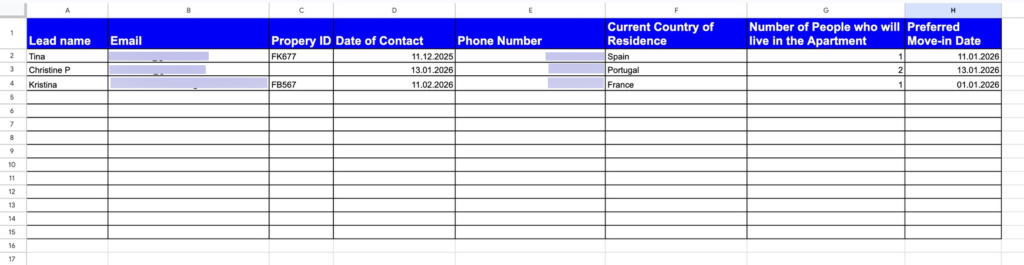
Property111


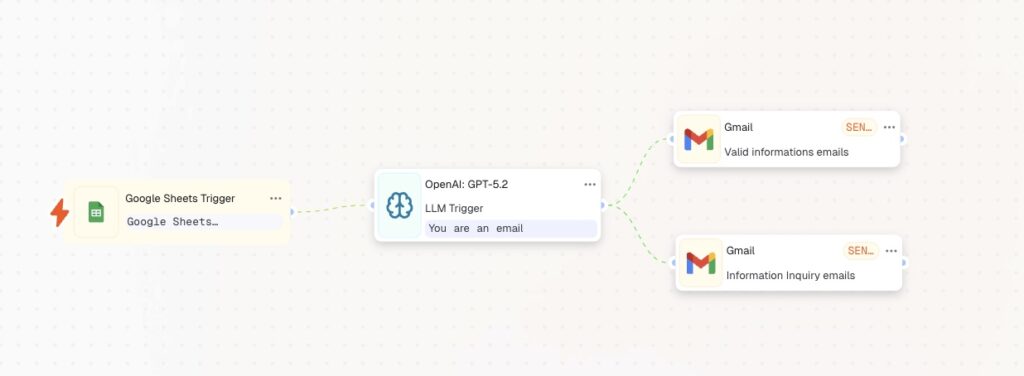
Here’s what your automated workflow will look like in action (customize it to fit your exact needs):
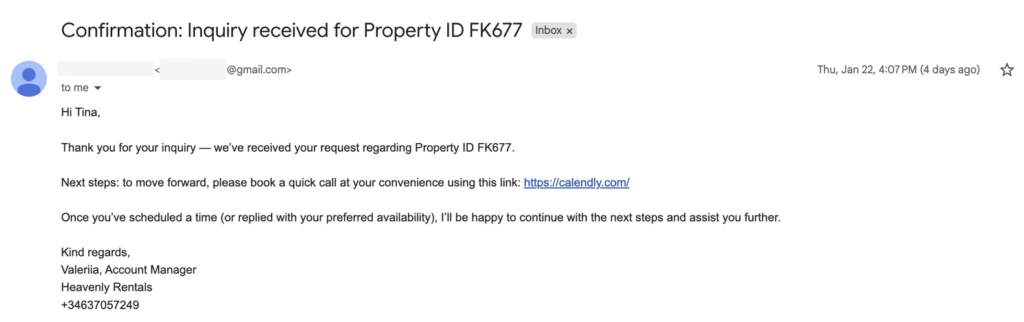
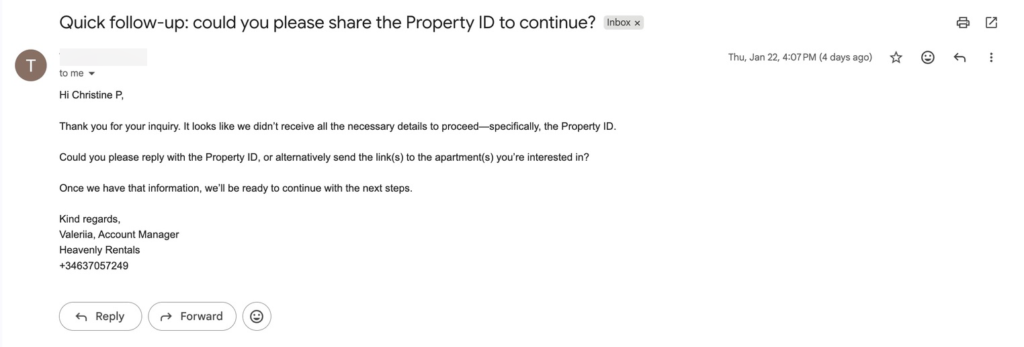


Why does it matter?

Property inquiries are time-sensitive. The faster and more relevant your response is, the higher the chance of conversion. Automating this step ensures that every lead receives an instant, personalized reply with the correct apartment details – without manual work. You save time, avoid errors, and convert more inquiries into viewings and bookings.

Step 1: Set the trigger node – Event from App

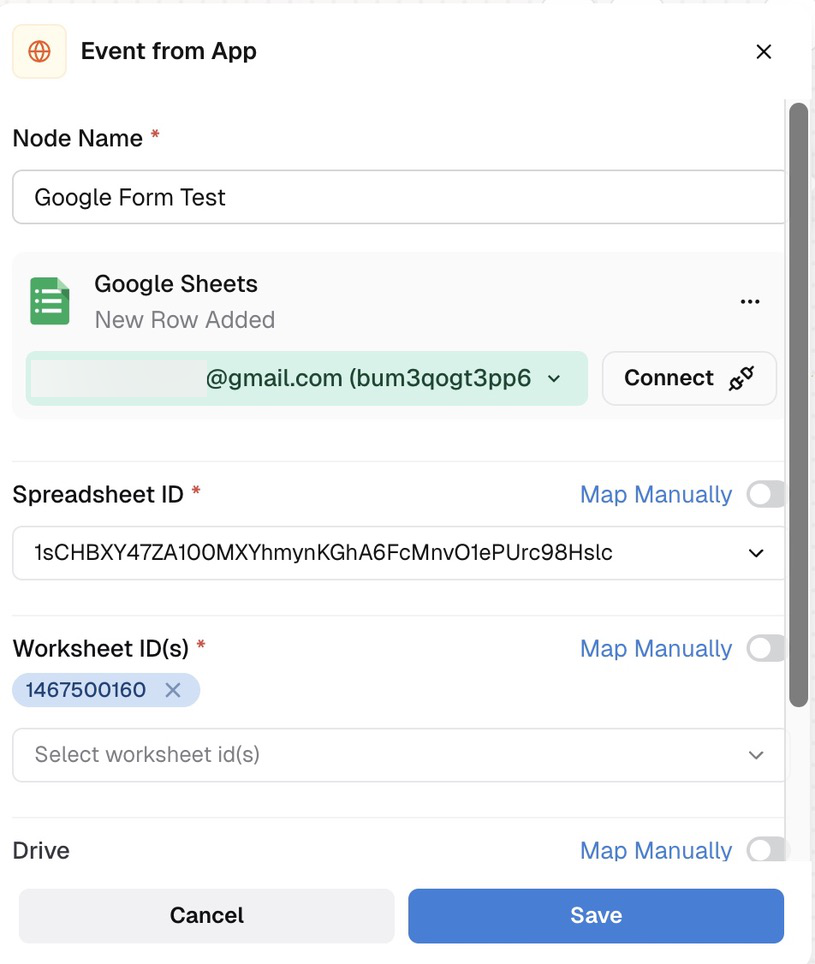
After opening the CogniAgent dashboard, click the “Add Step” button and choose “Event from App.”

As a quick refresher, CogniAgent is an event-driven platform. This means every action in your workflow starts from an event – such as a form submission, a data update, or an external trigger. In this case, the event is updated information in Google Sheets.
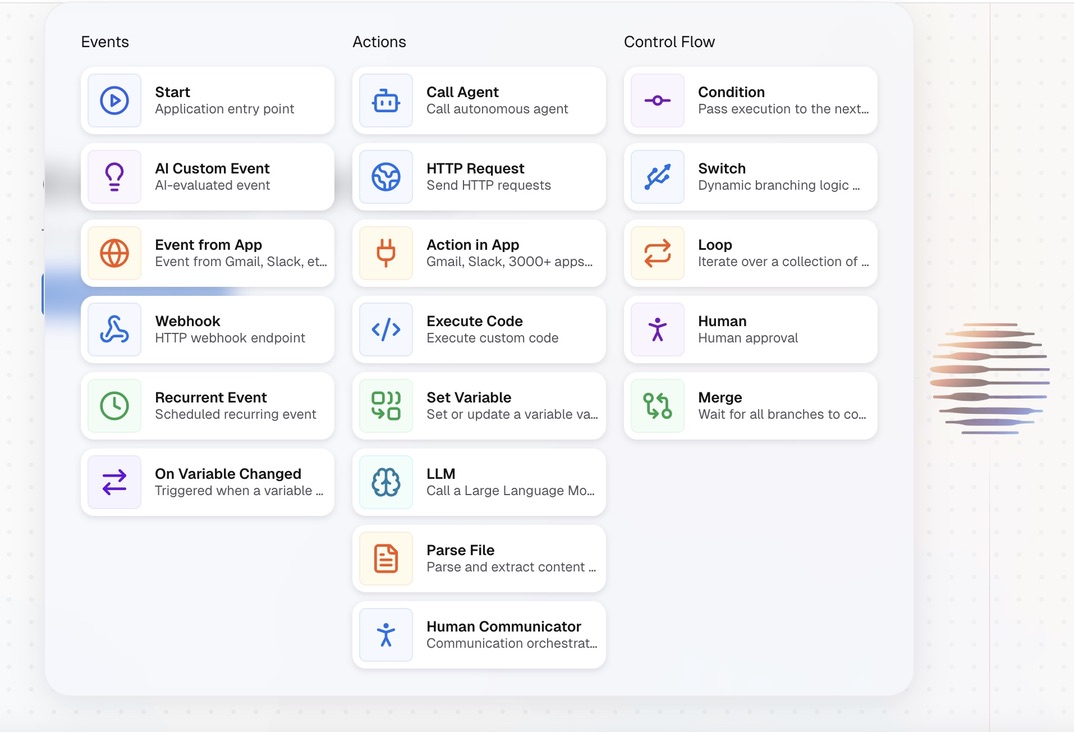
Once you select the node, open it and connect your Google account.
Step 2: Set the action node – LLM (Writing Emails)

Set up the node for writing your emails. Choose the LLM node and select the correct model. In this case, you need a contextual model, one that will generate text for you. Choose the OpenAI:GPT-5.2 model, name the node, and go directly to your instructions. In the system instructions, define the role of the LLM node. In this case, it is an email marketer, but it may be an SMM manager, an analyst, etc.
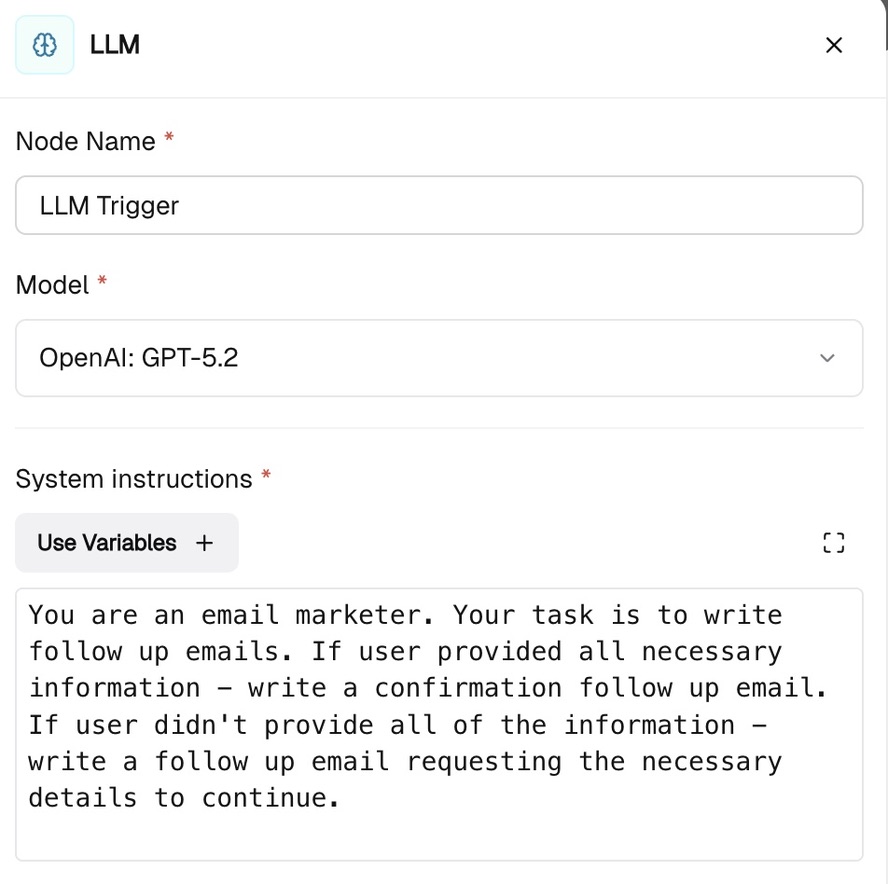
Important: Be as precise as possible. Imagine that you are giving directions to a real human. If you want a task to be completed, give precise and clear instructions.

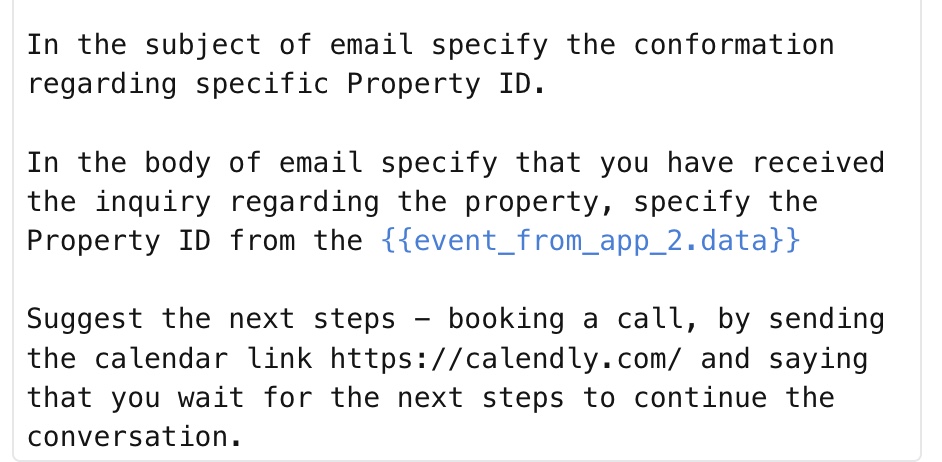
Next, go down to the user instructions. Here you’ll define what exactly you want to receive as outputs. In our scenario, we want to generate two email texts: one for the group of leads who completed all the necessary information and are ready to proceed with a call, and another for those who did not provide the necessary information, such as Property ID or a link to the apartments. In this case, we will have two follow-up emails – one confirming we’re ready to proceed and another requesting clarification of the inquiry.

Specify where the LLM node should take the information about the lead from. In our scenario, it comes from the first trigger node – the Google Sheets CRM.
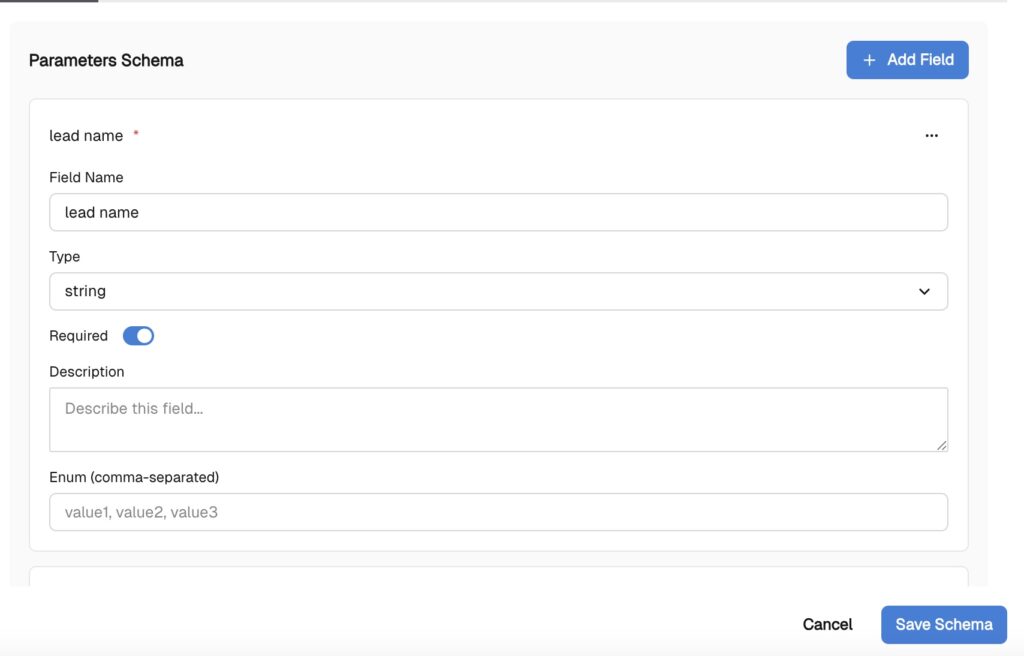
Go down to the structured output field and define the necessary fields for your email. This step is necessary if you want to receive clear text.
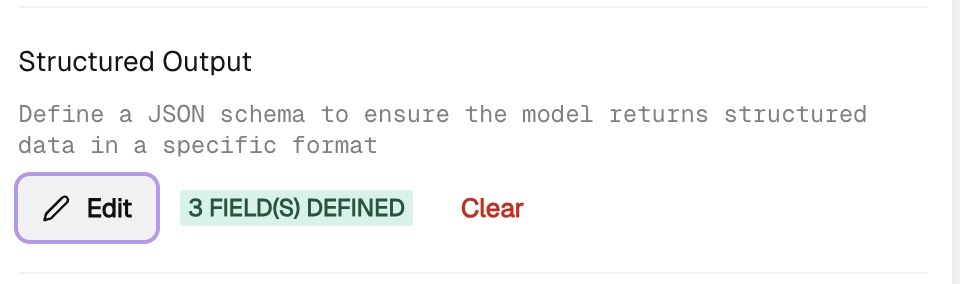
Define the necessary parameters such as email_lead, email_subject, and email_body, and mark them as required. Click save.
Step 3: Send emails to both user groups

Now that the emails are generated, it’s time to send them.

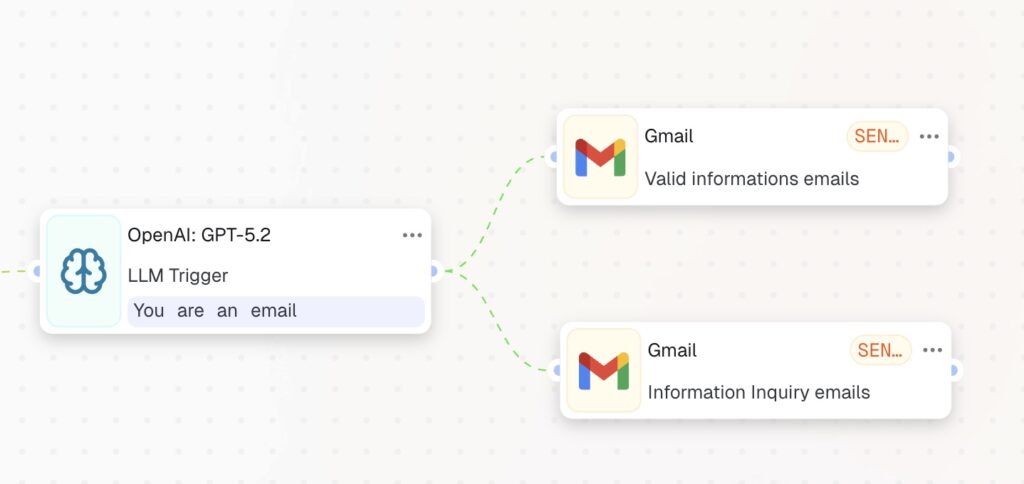
Add two “Action in App” nodes and connect each one to your Google account with the Send Email action selected. Attach each node to the corresponding LLM output.

Once connected, the workflow is complete:

  • Users with valid submissions receive the confirmation with the next steps to proceed
  • Users with incomplete submissions receive a request for additional information

Your AI-automated Property Inquiry Auto-Response is now live!
What’s next?

You’ve now built a complete AI-automated Property Inquiry Auto-Response workflow. With this foundation, you can easily customise it for any industry.

Next, take it further by exploring Control Nodes to add advanced routing, retries, approvals, and monitoring to your workflows. You may also want to schedule follow-up emails after 24 or 72 hours.

Be sure to follow us on social media, enable notifications, and don’t miss upcoming guides that show how to grow your business with zero code and minimal effort – all by clicking a single “Start” button.
  • What you’ll build in this guide
  • Why does it matter?
  • Step 1: Set the trigger node – Event from App
  • Step 2: Set the action node – LLM (Writing Emails)
  • Step 3: Send emails to both user groups
  • What’s next?

Other Guides

How to Build an Out-of-Office Coverage Handoff Flow in CogniAgent

date-icon Jun 26, 2026
clock-icon 4 min read

How to Set Up an Employee Onboarding Flow with Conversation Flows and Definition of Done

date-icon Jun 26, 2026
clock-icon 4 min read

How to Build a Customer Support Triage Agent in CogniAgent: From Inbound Message to Routed Ticket

date-icon Jun 26, 2026
clock-icon 5 min read
logo
  • Features
    • Platform Capabilities
      • Conversational AI
      • Multi-Agent Collaboration
      • Autonomous AI Agents
      • Business Intelligence Dashboard
      • AI Magic Window
      • AI Phone System
      • Cogni Canvas
      • Brand Customization Engine
      • Universal Data Integration
      • Emotional Intelligence Engine
      • Advanced Voice Intelligence
      • Knowledge Base Training
      • All Features
  • Technology
    • AI Concepts & Technology
      • Cognitive AI
      • Agentic Commerce
      • Advanced Voice AI
      • What is an AI Agent
      • AI Agent vs Chatbot
      • Generative AI vs Conversational AI
      • Cognitive AI vs Generative AI
      • Top LLM Agents
      • What is Agentic AI
      • How AI Agents Learn
  • Operations & Use Cases
    • Sales
      • Lead Qualification
      • Lead Enrichment on Autopilot
      • Purchase Order Processing
      • AI Sales Assistant
    • Customer Support
      • Returns Management
      • Order Status Tracking
      • Call Center Automation
      • Customer Service AI Agent
    • Marketing
      • AI Marketing Agent
      • Campaign Response Notifications
      • Content Distribution Tracking
      • Automated Reporting
    • HR & Recruiting
      • Candidate Screening
      • Onboarding Automation
      • AI Agents for HR
      • AI Recruiting Agent
    • Operations
      • Invoice Data Entry Automation
      • Automated Payment Verification
      • ERP Automation
  • Industries
    • Retail & eCommerce
      • eCommerce AI Solutions
      • Shopify
      • WooCommerce
      • Magento
      • BigCommerce
      • Fashion / Apparel
      • Electronics
      • Auto Parts
      • All eCommerce stores
    • Home Services
      • HVAC
      • Cleaning
      • Plumbing
      • Roofing
      • Auto Repair
    • Other Industries
      • Real Estate
      • Restaurants
      • Security
  • Solutions
    • Build with CogniAgent
      • AI Agent Builder
      • Virtual Employees
      • Workflow Automation
    • Compare
      • vs n8n
      • vs Make
      • vs Relevance AI
      • vs Lindy
      • vs Tidio
      • vs Rasa
      • vs Chatbase
      • vs Zapier
      • All comparisons
    • Guides & Resources
      • How-to Guides
      • Educational Guides
      • Blog
      • Tips & Tricks
      • Use Case Library
      • ROI Calculator

© 2026 Glorium Technologies LTD. All rights reserved.

Privacy Policy Terms of Service

    CogniAgent Free Trial
    We'll help you explore cognitive AI automation for your specific industry and business needs to get the most from your first experience.

      CogniAgent Demo Request
      We'll help you explore cognitive AI automation for your specific industry and business needs to get the most from your first experience.
      Get Early Access to CogniAgent
      Get 6 Months Pro Plan for Free
      Build unlimited AI agents and workflows with no restrictions. Test our Voice AI phone call automation with a 7-day trial, connect 2,700+ apps, and access premium AI models - all with unlimited users from day one.

        Joined today: 46

          Custom AI Agent Creation Pricing Request
          We're excited about the opportunity to discuss how we can help you create your custom conversational AI agent within and beyond CogniAgent capabilities according to your specific industry and functional needs.