How to Build a Recruiting Agent in CogniAgent (Step by Step)


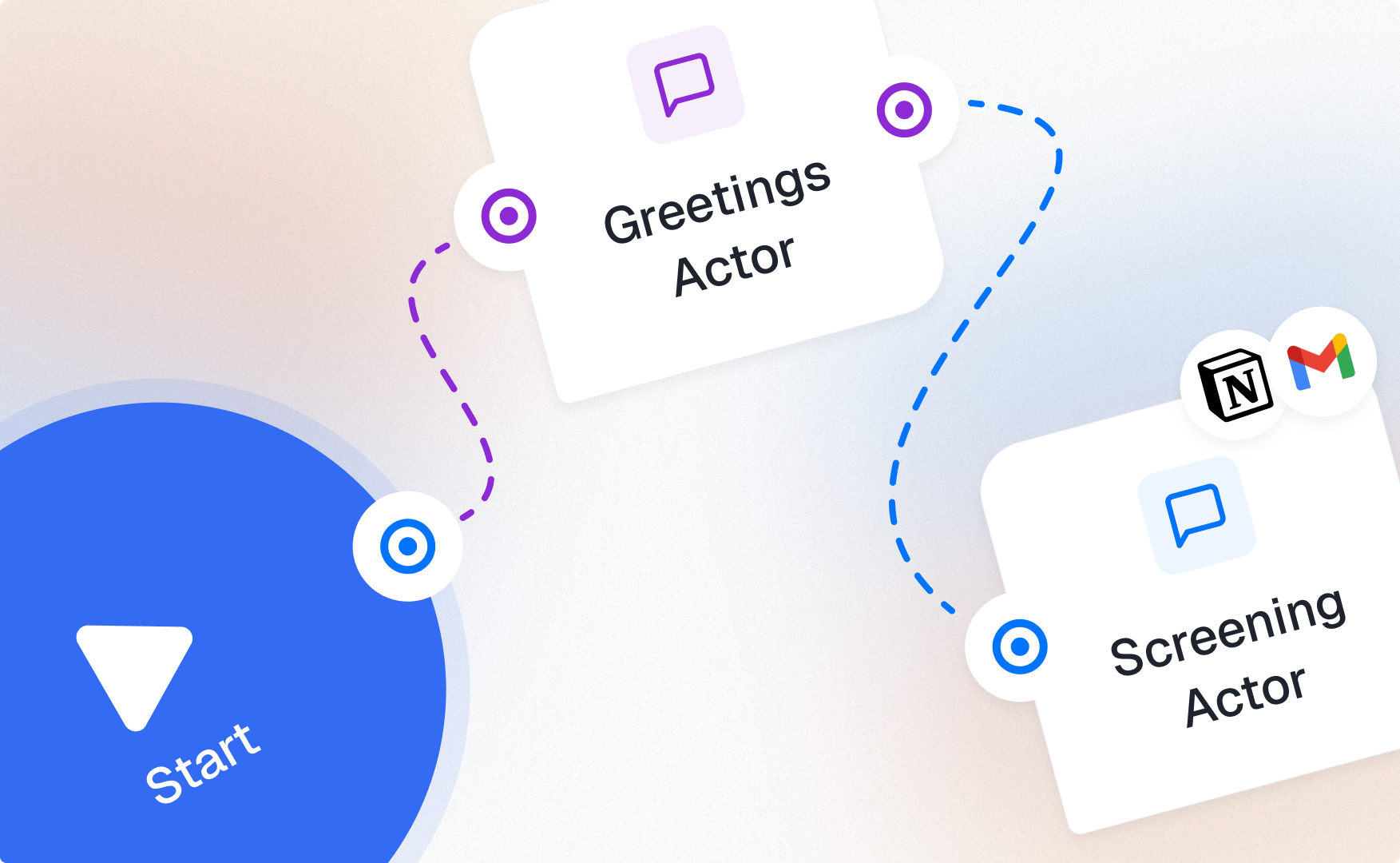
Hiring is repetitive. Every candidate gets the same greeting, the same questions, the same follow-up. That’s exactly the kind of work an AI agent should handle – so your team can focus on the people who actually make it to the next round.
This guide walks you through building a full recruiting agent in CogniAgent’s Conversation Flows: from greeting the candidate to logging their answers in Notion and sending a summary to the hiring manager via Gmail.
A conversational recruiting agent that:
No forms. No scheduling. No manual data entry.
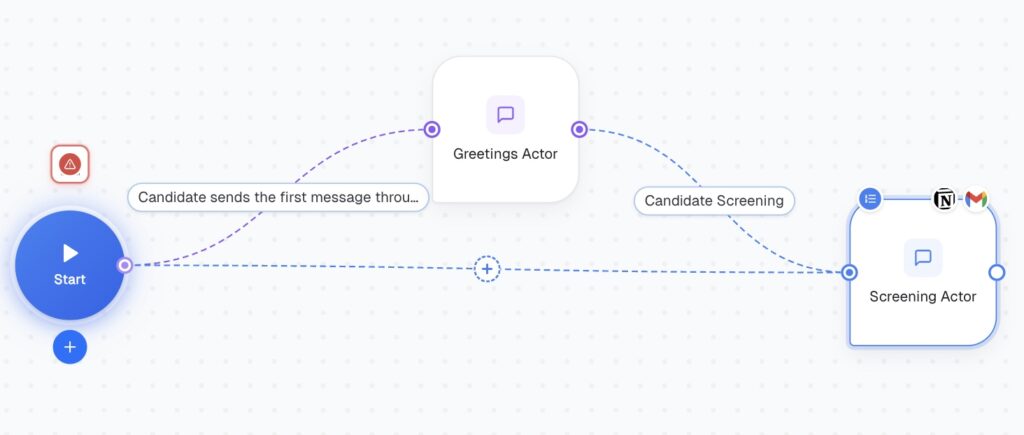
Go to Conversations -> New Flow
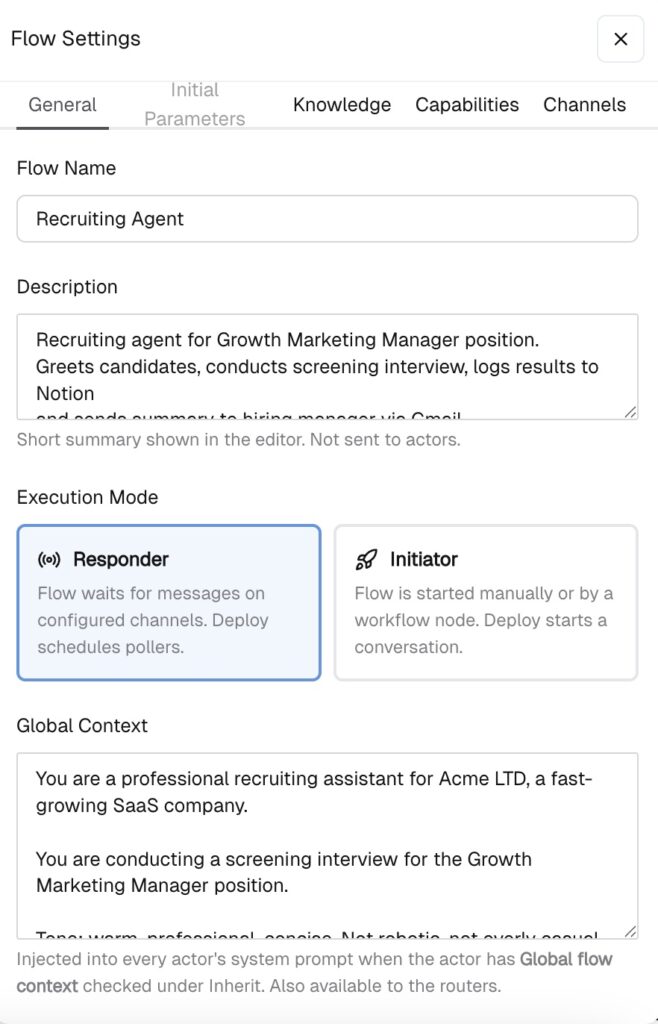
Open Flow Settings (gear icon) and configure:
General tab:
Global Context:
You are a professional recruiting assistant for Acme LTD, a fast-growing SaaS company. You are conducting a screening interview for the Growth Marketing Manager position.
Tone: warm, professional, concise.
Rules:
– Ask one question at a time
– Never rush the candidate
– Do not evaluate or judge answers during the conversation
– Do not ask for information already provided
– If the candidate goes off-topic, gently redirect
– Never reveal internal hiring criteria
– Always refer to the company as “Acme LTD”
Global Context is injected into every actor’s system prompt automatically – you only write it once.
Click Add Actor and name it Greetings Actor.
Activation Condition:
Candidate sends the first message through the channel
Basic tab:
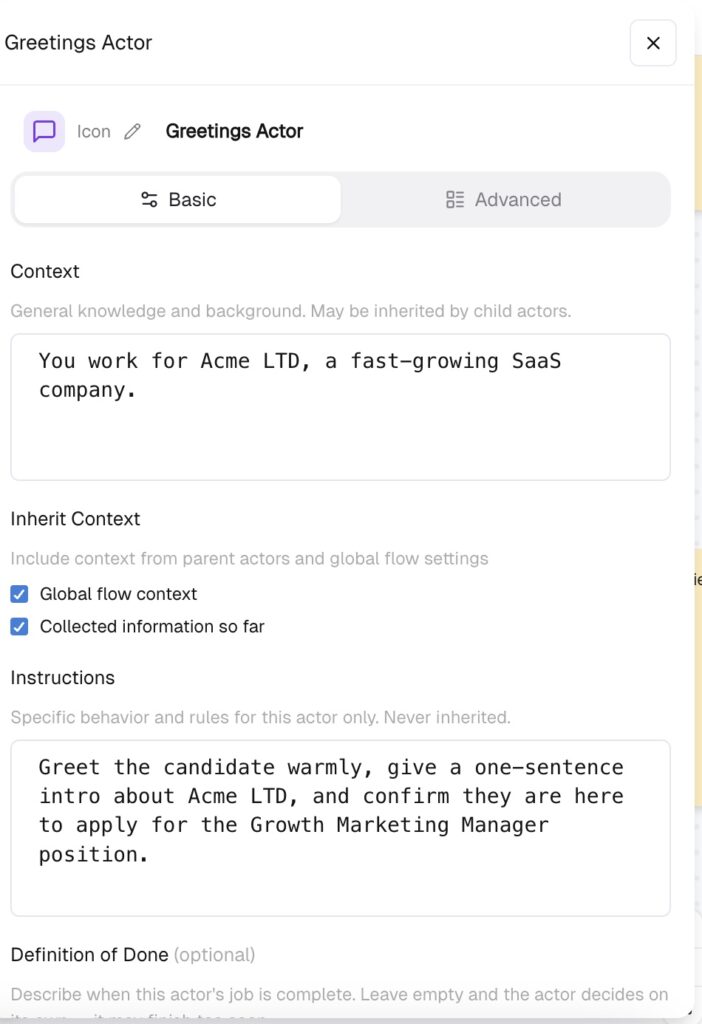
Context:
You work for Acme LTD, a fast-growing SaaS company.
Instructions:
Greet the candidate warmly, give a one-sentence intro about Acme LTD, and confirm they are here to apply for the Growth Marketing Manager position.
Definition of Done:
Candidate has confirmed they are applying for the Growth Marketing Manager position.
Inherit Context: ✅ Global flow context ✅ Collected information so far
The Definition of Done is critical — without it, the actor won’t know when to hand off to the next stage and will keep looping.
Set:
The candidate has confirmed they are applying for the Growth Marketing Manager position.
Focus Mode:
Controls how the actor handles topic changes mid-conversation. Choose “Persistent”.
Add a second actor: Screening Actor.
Activation Condition:
Greeting is complete and candidate is ready for screening
Basic tab:
Focus Mode: Strict — forces the actor to follow your steps in order instead of improvising.
Inherit Context: ✅ Global flow context ✅ Collected information so far
Advanced tab — Add these steps in order:
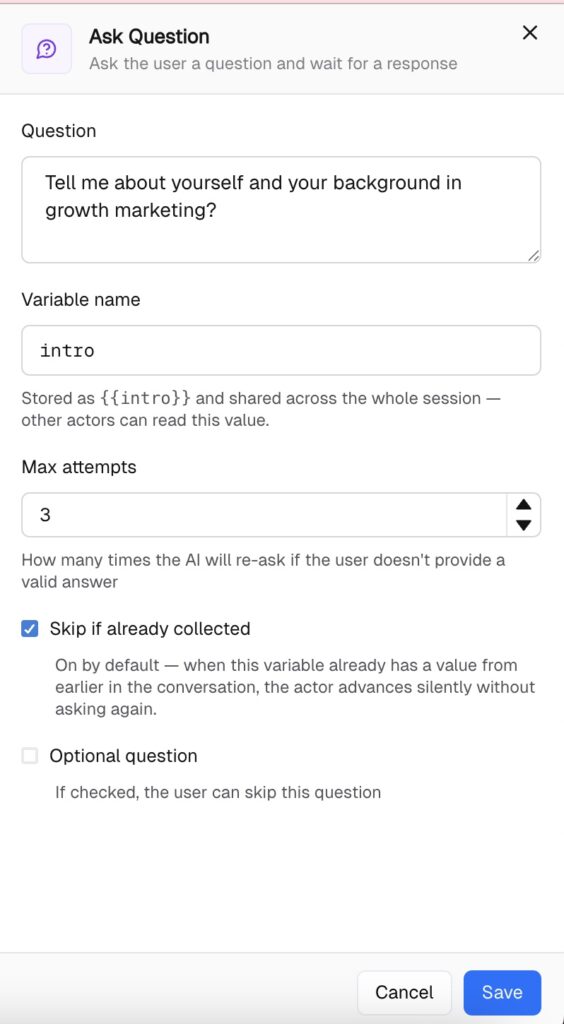
Tell me a bit about yourself and your background in growth marketing.
Variable: intro | Max attempts: 3 | ✅ Skip if already collected
What growth channels have you owned end-to-end — paid, SEO, email, partnerships?
Variable: channels_owned | Max attempts: 3 | ✅ Skip if already collected
Walk me through a campaign you ran that had a measurable impact on revenue or user growth.
Variable: best_campaign | Max attempts: 3 | ✅ Skip if already collected
How do you decide where to focus when you have limited budget and multiple channels to test?
Variable: prioritization | Max attempts: 3 | ✅ Skip if already collected
What tools do you work with daily — analytics, automation, ads?
Variable: tools_stack | Max attempts: 3 | ✅ Skip if already collected
What is your expected monthly salary and when could you start?
Variable: salary_and_availability | Max attempts: 3 | ✅ Optional question
Thank you — your answers give us a great picture of your experience. The Acme LTD team will review your application and get back to you within 3–5 business days. Good luck! 🙌
After all questions are collected, add an Act step. This is where the actor executes actions based on the interview data — no separate workflow node needed.
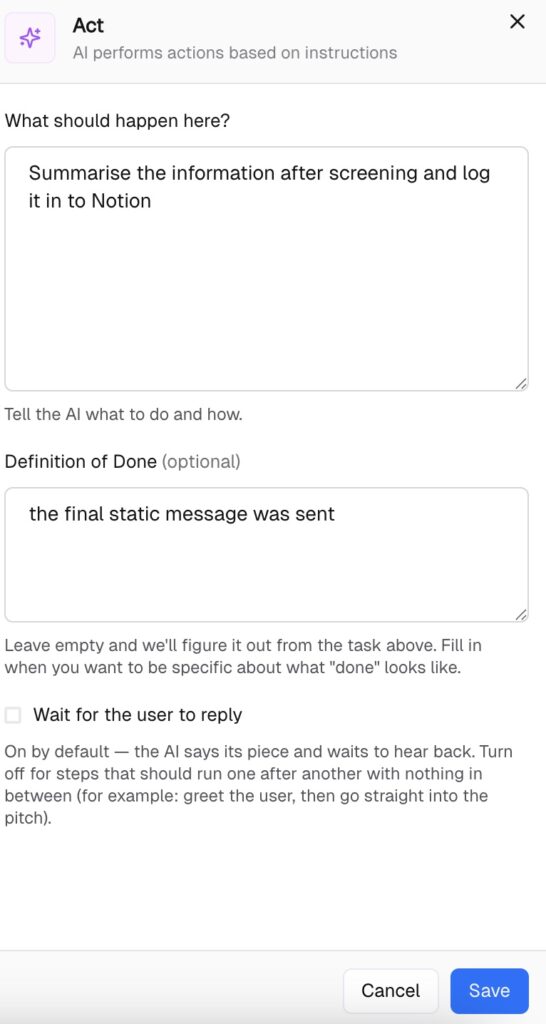
Step 9 — Static Message
Thank you — your answers give us a great picture of your experience.
The Acme LTD team will review your application and get back to you
within 3–5 business days. Good luck! 🙌
Step 10 — End
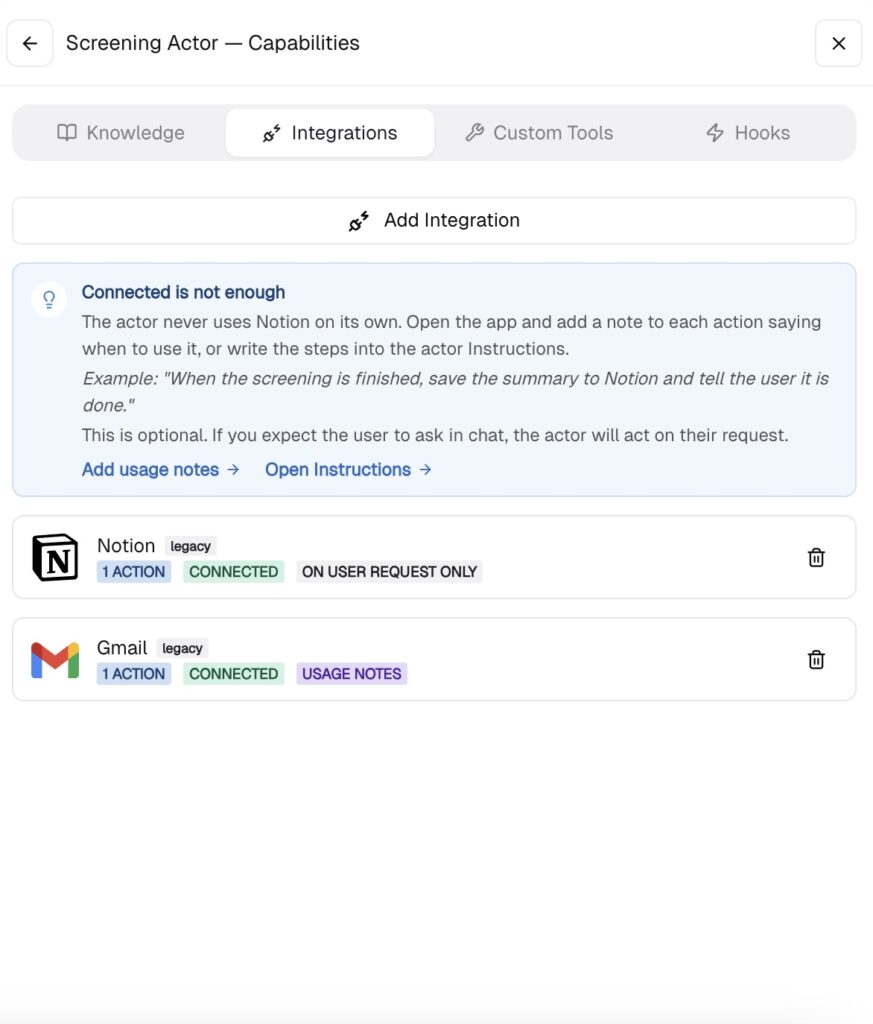
Note: Notion and Gmail must be connected under Capabilities -> Integrations inside the Screening Actor before the Act step can execute. Without active integrations the actor has no tools to work with.
Inside the Screening Actor, go to Capabilities -> Integrations and follow the instructions to connect Notion and Gmail.
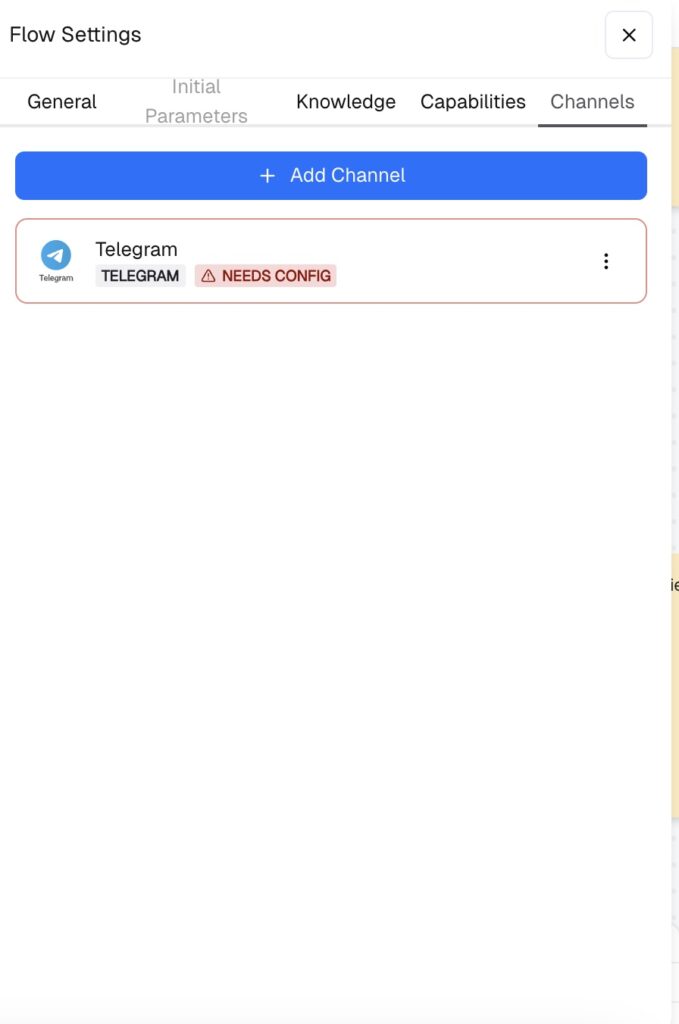
Go to Flow Settings -> Channels and connect your channel – Web Widget, Gmail, SMS, WhatsApp, Telegram, etc. This is where candidates will reach the agent and start the screening process.
Click Test at the bottom of the canvas. Use the debug panel to verify:
Once all checks pass — hit Deploy.
The same pattern works for any role — just swap the screening questions and update the Global Context. Follow other guides on building with CogniAgent to explore more use cases — from customer support agents to lead qualification flows and automated onboarding.